MyPay DFAS Registration – Create MyPay DFAS Profile
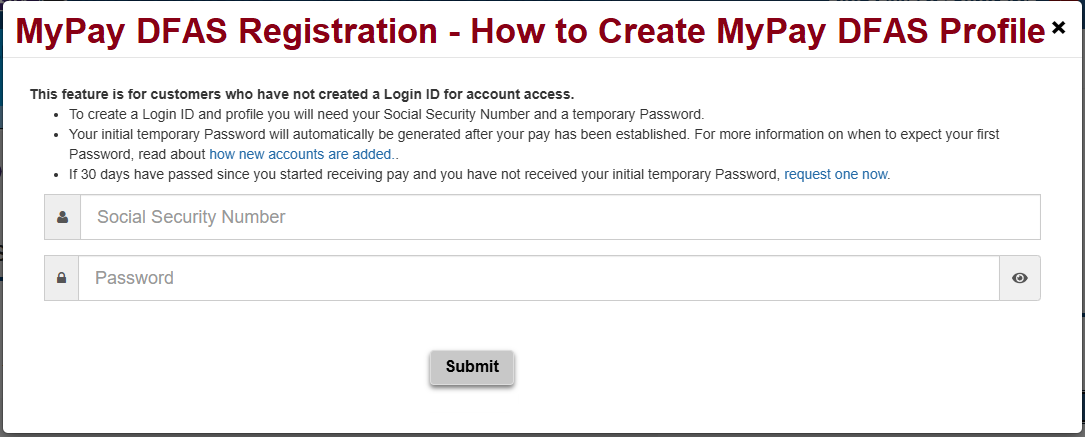
Eligible military members, retirees, annuitants, and certain federal civilian employees can create MyPay DFAS profile and access their pay-related information online. Through the Defense Finance and Accounting Service (DFAS) system, registered users can view available pay statements, access tax documents, and manage certain personal and payment details.
If you are new to DFAS myPay, you may be wondering how to register, where to get your temporary password, and what information is required to create your MyPay DFAS Profile. This guide explains the first-time registration process and what to do if you have difficulty getting started.
What Is MyPay DFAS Registration?
MyPay registration is the process of creating a personal profile on the DFAS MyPay website. During the initial setup, eligible users verify their identity, establish a Login ID, create a permanent password, and configure the required account security options.
However, registering for MyPay DFAS starts with obtaining the temporary password associated with your eligible pay account. After receiving it, you can use the myPay DFAS homepage to create your profile, establish your Login ID and permanent password, and configure two-factor authentication.
After completing registration, you can use your Login ID and password to access the services available to your account.
Who Can Create MyPay DFAS Profile?
DFAS MyPay is not an open registration service for everyone. It is intended for eligible individuals whose pay or related records are handled through participating government payroll systems. Eligible groups include:
- Active-duty military members.
- Reserve and National Guard members.
- Military retirees and eligible future retirees.
- Military annuitants.
- Certain Department of Defense civilian employees.
- Eligible employees of participating federal agencies.
- JROTC instructors.
- Army Nonappropriated Fund employees.
- Eligible former spouses with their own myPay accounts.
Eligibility and account availability depend on the individual’s pay status and the records established by the responsible agency.
For example, a retired civilian employee paid through the Office of Personnel Management generally uses the appropriate OPM services rather than a military retiree myPay account.
If you are unsure whether you qualify, check with your payroll office or consult the official DFAS myPay eligibility information.
What Do You Need To Create MyPay DFAS Profile?
Before creating your profile, make sure you have the information and access required for your account.
1. Social Security Number: DFAS uses your Social Security number as part of the initial identity verification process. Enter it only on the official myPay website or through an approved DFAS process.
2. Temporary Password: First-time users generally need a temporary password before creating their profile.
For many new customers, DFAS generates this password automatically after the relevant pay account has been established. The delivery method and timing depend on the customer’s service or employment category.
Some users, including certain retirees and annuitants, may need to request an initial password through the DFAS myPay password assistance option.
3. Internet-Connected Device: You can use a computer, tablet, or smartphone with an up-to-date browser to access the DFAS myPay website.
4. Access to a Verification Method: During initial setup, you will need to configure two-factor authentication. Depending on the available options, this may involve a registered phone number, email address, or authenticator app.
Eligible CAC or PIV smart-card users may also have a smart-card sign-in option.
How to Get Your Initial MyPay Temporary Password
Your first temporary password is required to create your profile. How you receive it depends on your customer category.
New Military Members
For many active-duty and Reserve members, myPay DFAS account access is established after the relevant military pay records are created.
DFAS provides initial password information through the delivery method associated with the member’s service and account. This may involve an email or postal delivery, depending on the circumstances.
If you have received your first paycheck but have not received a temporary password, check the official DFAS New User Guidance for instructions that apply to your branch and status.
New Federal Civilian Employees
For eligible civilian employees, account creation depends on the payroll information supplied by the employing agency.
Once the necessary records have been established, DFAS generates the initial temporary password. The delivery method can vary by agency.
If you are a new employee and have not received your password, contact your payroll or human resources office to confirm that your information has been submitted correctly.
Military Retirees and Annuitants
Retirees and annuitants may need to request an initial temporary password through the official myPay DFAS Login portal. The general process is:
- Visit https://mypay.dfas.mil/.
- Select Forgot or Need a Password?
- Follow the prompts for requesting an initial password.
- Complete the required identity verification.
- Select an eligible delivery method when one is offered.
- Wait for the temporary password to arrive.
For some retired and annuitant accounts, the temporary password is mailed to the address on record with DFAS. Delivery time can vary.
What If You Have Waited More Than 30 Days? DFAS advises new customers who have been receiving pay for 30 days without receiving their initial temporary password to use the Forgot or Need a Password option on the myPay homepage to request one.
If you are unsure whether your pay account has been established, contact your payroll office or the relevant DFAS support team.
How to Create Your MyPay DFAS Profile
Once you have your temporary password, you can begin creating your profile. Follow these steps:
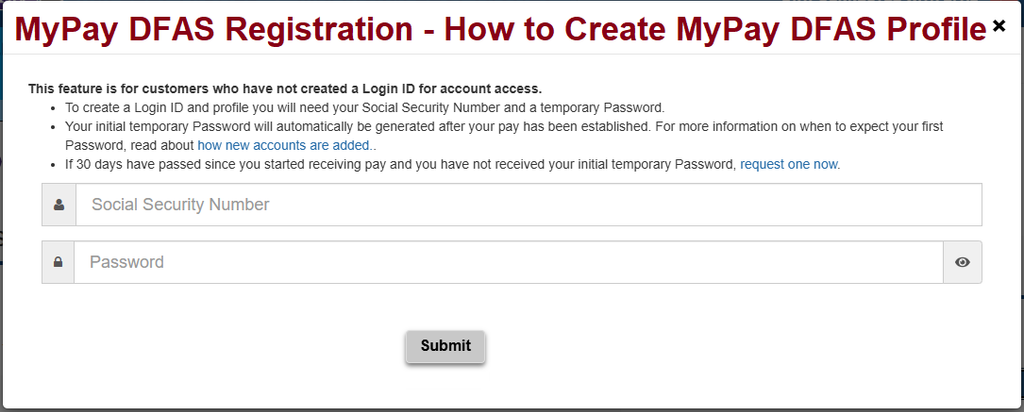
- Open a browser and visit the myPay DFAS login page.
- Locate the New User section on the homepage.
- Select Create Your myPay Profile.
- Enter your Social Security number in the requested field.
- Enter the temporary password supplied by DFAS.
- Submit the information and follow the identity verification instructions.
- Create a personal Login ID.
- Establish a permanent password.
- Complete the required two-factor authentication setup.
- Review the information displayed and finish the registration process.
The exact screens and prompts may change as DFAS updates its website. Follow the instructions displayed during your registration rather than relying on screenshots from an older version of the system.
How to Choose Your MyPay Login ID and Password
During registration, you will be asked to create credentials for future access.
Choosing a Login ID
Your Login ID identifies your account when you sign in. DFAS states that a MyPay DFAS Login ID can contain between 6 and 129 characters and may include letters, numbers, and certain special characters.
Choose something you can remember without making it easy for another person to guess.
Creating a Secure Password
Your permanent password should be difficult for someone else to predict. Consider these practices:
- Avoid using your name, birthday, or other easily guessed personal details.
- Do not reuse a password from another website.
- Keep your password private.
- Store it in a reputable password manager if you use one.
- Follow the password requirements shown on the myPay registration screen.
Never share your password with someone claiming to be a DFAS representative.
Setting Up Two-Factor Authentication
MyPay DFAS requires users signing in with a Login ID and password to establish two-factor authentication during their initial setup.
Two-factor authentication provides an additional security step beyond your regular credentials. Depending on the available options, you may be able to use:
- A one-time PIN sent by text message.
- A one-time PIN sent to your registered email address.
- A compatible authenticator app.
Follow the instructions on the screen to select and configure your preferred method.
If you use a CAC or PIV smart card, DFAS provides a separate smart-card sign-in option. Eligible smart-card users may not be asked to enter an additional PIN after the initial setup.
Make sure your selected contact information is accurate. An outdated phone number or email address can make future account verification more difficult.
What Can You Do After Registering?
Once your profile is active, you can sign in and use the services available to your account. Depending on your status, myPay may allow you to:
- View and download your Leave and Earnings Statement (LES).
- Access available W-2 or 1099-R tax documents.
- Review payment information.
- Manage eligible direct deposit details.
- Update certain tax withholding information.
- Change mailing or email addresses.
- View retirement-related statements, where applicable.
- Manage other available account settings.
The services shown in your profile depend on your employment or military status. Not every account holder has access to every feature.
Common MyPay Registration Problems and Solutions
First-time registration does not always go smoothly. Here are some issues you may encounter and possible ways to resolve them.
You Have Not Received Your Temporary Password
Your initial password may not be available immediately after joining the military or starting a new government job.
Check whether your pay account has been established and whether your service or agency has submitted the necessary information.
If you have already been receiving pay for more than 30 days, use the password assistance option on the official myPay homepage or contact the appropriate payroll office.
Your Social Security Number Is Not Accepted
An error involving your Social Security number may indicate that the information entered does not match DFAS records.
Check for typing mistakes and make sure you are using the correct temporary password.
If the error continues, it is possible that you have already created a myPay profile. In that situation, try the Login ID recovery option instead of attempting to register again.
Your Temporary Password Does Not Work
Temporary passwords are intended for the initial setup process and may be subject to validity limits.
Carefully enter the password as supplied. If it is rejected, return to the official password assistance page and follow the instructions for requesting another password.
You Cannot Complete Two-Factor Authentication
Check that your selected phone number or email address is accessible. If you use an authenticator app, make sure it has been configured correctly.
If the available verification options do not work, contact DFAS through an official support channel.
You Already Have a MyPay Account
You do not need to create another profile if you already registered. If you have forgotten your Login ID or password, use the relevant recovery options on the myPay homepage.
How to Get Help With MyPay Registration
If you cannot complete the registration process, use the official DFAS support resources. You can also visit Ask myPay to review frequently asked questions or submit an online support request.
If your issue relates to missing pay records or employment information, your military personnel office, agency payroll office, or human resources department may need to resolve it.
For account access assistance, DFAS lists the myPay Customer Care Center at 1-888-332-7411. Check the official contact information for current hours and other available contact methods.
MyPay DFAS Registration Frequently Asked Questions
Can I create myPay DFAS Profile for free?
MyPay is a government online account service for eligible customers. Use the official DFAS website for registration rather than paying an unofficial website or individual to create your profile.
Can I create myPay DFAS Profile without a temporary password?
Most first-time users need a temporary password to establish their profile. The way you obtain it depends on your customer category. Some users receive it automatically, while others may need to request one through the official website.
How long does it take to receive a temporary password?
There is no single delivery time for every customer. Timing depends on your military or civilian status and the delivery method used by DFAS. Some users receive a password electronically, while others may receive it by mail.
Can I create myPay DFAS Profile using my phone?
Yes. You can access the myPay website through a compatible mobile browser. You will still need the required identity information and temporary password to establish your profile.
Can I use my CAC to access myPay?
Eligible users can use a Common Access Card (CAC) or Personal Identity Verification (PIV) card for smart-card access. The available options depend on your account and device setup.
What if my Social Security number is already registered?
You may already have a myPay profile. Try the Forgot your Login ID? option on the official homepage or use the password assistance process if you cannot remember your credentials.
Do retirees and annuitants follow the same registration process as active-duty members?
Not necessarily. Retirees and annuitants may need to request an initial temporary password through the myPay website, while many new military and civilian customers receive one after their pay records are established.